 Photoemu
How to edit text in a PSD file without Photoshop
A designer sends you a PSD with a price, a date or a headline that is now wrong. You do not own Photoshop, the deadline is today, and asking for a new export feels slow. The good news is that most PSD text changes are small, and a browser editor can handle them. This guide shows how to edit text in a PSD file without Photoshop using Photoemu, what can go wrong with fonts, and how to hand the file back safely.
You will need a modern browser and the PSD itself. Nothing is installed, and you can start from the online PSD editor page or straight from the free online photo editor.
Why PSD text is different from normal image text
In a PNG or JPG, words are just coloured pixels. You cannot change a letter without painting over it. In a PSD, the designer usually keeps words on a separate text layer that remembers the characters, font, size, colour and spacing. That is why a PSD can be edited later, and why opening one in the right tool matters.
When a text layer is intact, editing it is as easy as editing a line in a document. When the text has been rasterized or converted to shapes, it behaves like a picture, and you need a different approach, which we cover below.
Edit a PSD text layer in Photoemu, step by step
- Go to photoemu.com and click Start using Photoemu.
- Choose Open From Computer and select your .psd file. Your original on disk is not overwritten, because edits stay in the browser session until you export.
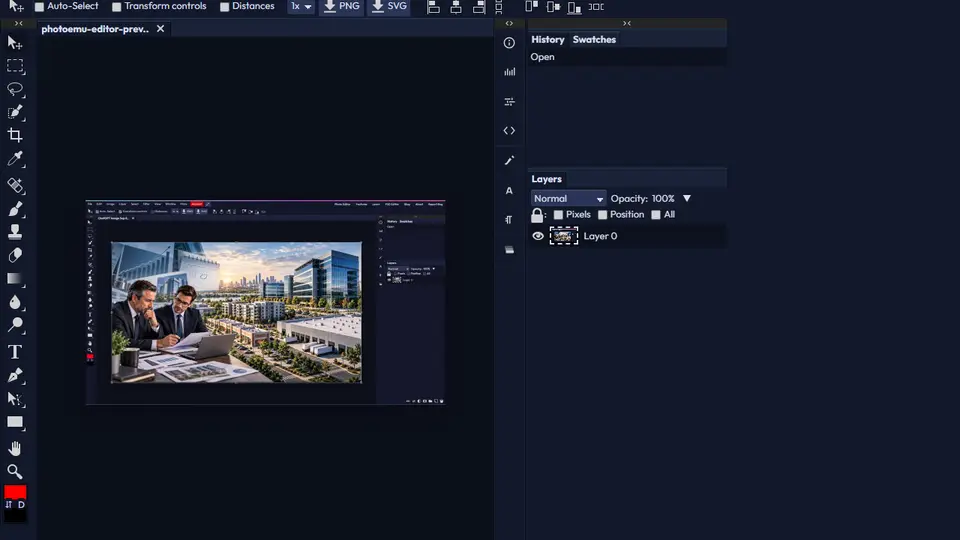
- Look at the Layers panel on the right. Text layers are normally shown with a "T" style thumbnail and use the words themselves as the layer name.
- Click the text layer you want to change so it becomes the active layer.
- Pick the Type Tool in the left toolbar (shortcut T), then click on the words in the canvas. The cursor drops into the text and you can select, delete and retype.
- Press Esc or click another tool to finish. Check the result at 100% zoom.
- Save with File → Save as PSD if you need to keep working, or File → Export As for a PNG or JPG.
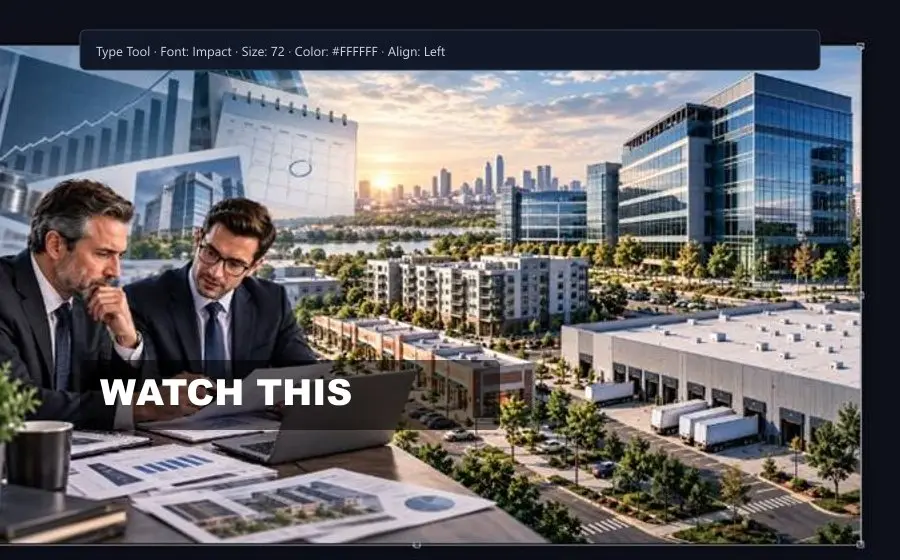
Change font, size, colour and alignment
With the Type Tool active and your cursor inside the text, the options bar at the top shows the character settings. Adjust only what you must, because every extra change drifts further from the designer's original look.
- Font family: keep the original unless it is missing (see the next section).
- Size: raise or lower in small steps and compare against neighbouring text.
- Colour: use the colour swatch and enter the same hex value as the surrounding design when you have it.
- Alignment: left, centre or right. Keep the alignment that the layout was built around.
- Spacing: change tracking or line height only when a longer word no longer fits.
If the new text is longer, remember that the layer may be sized for a short word. Check the neighbours in the Layers panel and look for background shapes that the text needs to sit inside.
What happens when a font is missing
This is the number one surprise in PSD work. A PSD points to a font by name but does not always carry the font file. If that font is not available to your browser or system, the editor has to substitute another, and letter shapes, widths and line breaks can shift.
Handle it in three steps:
- Ask the sender which font was used, or read it from the options bar when you select the text.
- Install or enable that font on your computer if the licence allows it, then reload the PSD.
- If you cannot get the font, pick the closest match in style, weight and width, and tell the client about the substitution.
Always check a few characters that tend to differ between fonts, such as numbers, quotes and the letters "g" and "y". Brand fonts and paid typefaces have licences, so only use ones you are allowed to use.
When the text is not editable
Sometimes you click with the Type Tool and nothing happens, or the layer thumbnail looks like a normal picture. That usually means the text was rasterized, merged into the background, or the PSD was flattened before it was sent. You have three honest options.
Option 1: ask for the layered source
The cleanest fix is to request the original layered PSD, or a version where the text is still live.
Option 2: cover the old words and retype
If the background behind the text is simple, such as a flat colour or a smooth gradient, you can rebuild the area:
- Select the area with the Magic Wand or Quick Selection tool, or use the Clone Stamp from a clean part of the background.
- Fill or paint over the old words on a new layer above the image so the original stays untouched.
- Add new words with the Type Tool on top.
On textured backgrounds, photos or complex patterns, this can look patchy. Zoom in and compare before you export.
Option 3: use the Eraser carefully
The Eraser can remove words that sit on their own layer, but on a flattened image it removes the background too. Use it only on a duplicate layer, and prefer masks when they are available so that you can recover mistakes.

Keep effects, masks and layer styles intact
Many text layers carry extras: a drop shadow, an outline, a gradient fill or a clipping mask. Editing the characters usually keeps these attached, but check anyway. If the shadow looks too heavy after a longer headline, reduce its distance rather than re-creating it. If the text vanishes after editing, look in the Layers panel for a hidden eye icon or a mask that is covering the new area.
Save and send the file back
Your destination decides the format:
- File → Save as PSD when the designer needs to continue editing layers.
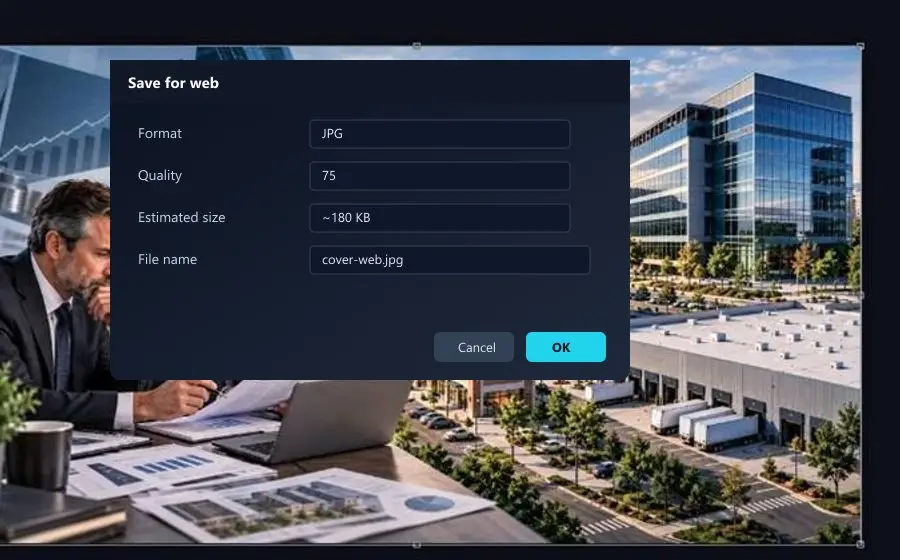
- File → Export As or Save for web for a PNG or JPG that goes online.
- PNG for sharp text, logos and anything with transparency. JPG for photo-heavy designs where a smaller file matters.
If the export needs different dimensions, open Image → Image Size before you export, or follow our resize image online guide. For a general overview of layers and tools, see the online photo editor page, and read how to edit a PSD online for the wider workflow.
A quick checklist before you hand over
- Read every changed word aloud. Typos in prices and dates are expensive.
- Compare line breaks with the original layout.
- Zoom to 100% and check edges around the text for leftover pixels.
- Keep the original PSD untouched, and save your changes under a new name.
Photoemu opens PSD files in the browser, but very complex files with unusual effects or smart objects may not match Photoshop exactly. Always compare the result with the preview that the designer supplied. Adobe documents how its own text layers work in the Photoshop type tool guide, which is a helpful reference for terms like tracking and leading. The PSD structure itself is described in the Adobe PSD file format specification.
Edit PSD text FAQ
Can I edit text in a PSD without Photoshop for free?
Yes. Open the PSD in Photoemu with Open From Computer, select the text layer in Layers and use the Type Tool. No install or account is required, and ads may appear to support the free service.
Why can I not click the text and change it?
The text was probably rasterized or the PSD was flattened. Ask for the layered source, or cover the old words and add new ones with the Type Tool on a fresh layer.
Will the font look the same as in Photoshop?
Only if that font is available to your browser or computer. When it is missing, a substitute is used and spacing may change, so compare the result with the original preview.
How do I keep the file editable after changing text?
Use File → Save as PSD to keep layers. Export a PNG or JPG only for the final copy that goes online.