 Photoemu
Open an XCF file online — view and edit GIMP layers in your browser
Someone emails you a file ending in .xcf. Double-clicking does nothing, your image viewer shows a blank icon, and installing a full desktop program just to look at one picture feels like overkill. This guide explains what an XCF file is and how to open an XCF file online with Photoemu, then edit it and export something that every app understands.
You only need a browser. Start from the free online photo editor and follow the steps below.
What is an XCF file?
XCF is the native project format of GIMP, the open source image editor. It is not meant to be a final image for the web. It is a working file that can keep layers, transparency, masks, channels, paths, selections and other editing data in one place. Because of that, XCF files are often larger than a PNG or JPG of the same picture, and most websites, chat apps and email previews cannot show them.
The GIMP documentation explains how GIMP saves and exports files. The short version is that XCF is for editing and exported formats are for sharing. If you need the final picture, you must open the XCF in a capable editor and export it as a normal image.
Open an XCF file in Photoemu
- Go to photoemu.com and click Start using Photoemu.
- On the start screen choose Open From Computer.
- Select your .xcf file and confirm. The file is read in your browser session, and your original stays where it is.
- Wait a moment for large files. Multi-layer artwork can take longer than a single photo.
- Check the Layers panel to see which layers loaded, which are visible and how they are stacked.
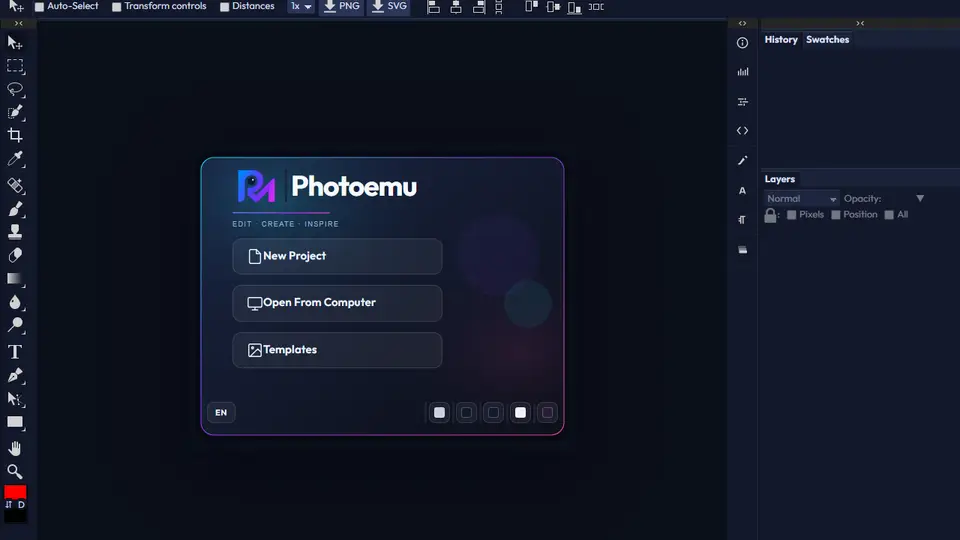
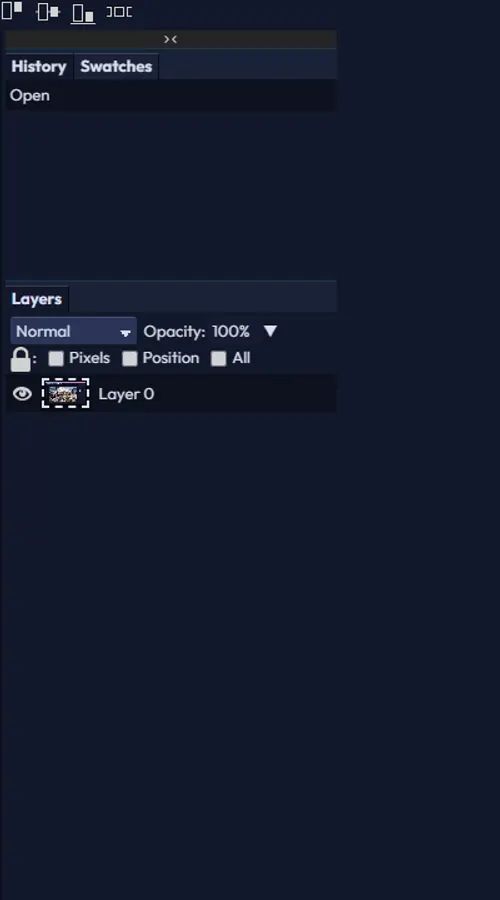
Photoemu also reads PSD, PNG, JPG, SVG, Sketch and other formats, so the same start screen works for most files you will meet. See the online PSD editor page if your file is actually a Photoshop document instead.
Check what loaded correctly
XCF is a rich format, and not every GIMP feature maps perfectly to every other editor. Spend a minute comparing the result with what you expect:
- Layer order and visibility: toggle the eye icons and confirm that each layer is where it should be.
- Transparency: a checkerboard pattern behind the artwork means transparent pixels are intact.
- Blend modes and opacity: look at overlays, shadows and glows. If a layer looks too strong or too weak, check its opacity and mode.
- Text: GIMP text may be flattened into pixels or need a matching font. Treat it as a picture unless you can click and change it with the Type Tool.
- Paths, guides and extra channels: these are editing helpers and may not carry over. They rarely affect the final picture.
If something looks wrong, ask the sender for a PNG preview of the same artwork and compare it side by side. This one habit catches most surprises.
Make quick edits to the opened file
You do not have to export right away. Once the XCF is open, the usual tools are available.
Select and cut out
Use the Magic Wand or Quick Selection tool on the active layer to select a subject or a flat background. Press Delete to remove the area, or use the Eraser for a softer edge. Always work on a duplicate layer when the original pixels might be needed again.
Crop and frame
Pick the Crop Tool to trim the canvas to the area you need. Our crop image online guide explains ratios and composition.
Add or fix text
Choose the Type Tool, click on the canvas and type. Pick a font, size and colour in the options bar. New text appears on its own layer so you can move it later.
Resize for the destination
Open Image → Image Size and enter the width and height you need. Keep the proportions linked unless you intend to stretch the picture. The resize image online guide covers file size, pixel size and quality in more detail.

Export your XCF as PNG, JPG or PSD
Pick the format by what happens next:
- PNG for logos, screenshots, graphics with text and anything with transparency.
- JPG for photographs where a small file matters and transparency is not needed.
- PSD when someone else will keep editing the layers in Photoshop or another editor that supports it.
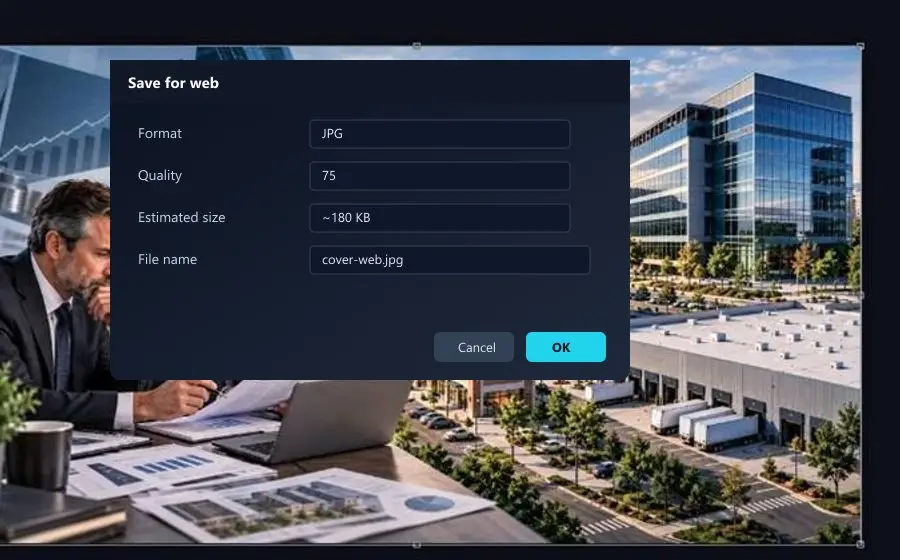
- Choose File → Export As or Save for web for PNG or JPG. Set the quality, then type a name into the file name box and click Save.
- Choose File → Save as PSD if you need a layered file that works with Photoshop-style workflows.
The MDN image file type guide is a reliable reference when you are unsure which web format fits. We also wrote about the trade-offs in PNG to JPG conversion.
Troubleshooting a file that will not open
- The file is very large: close other browser tabs, then try again. Huge canvases need memory.
- The file came from a newer GIMP version: ask the sender to re-export it, or to send a PNG or PSD copy.
- The file is damaged: downloads that were cut short or renamed archives will fail. Download it again and check that the size matches.
- The extension is wrong: a file called .xcf may really be a compressed archive. Some GIMP files are saved with .xcf.gz or .xcf.bz2, so extract those first.
- The layers look different: compare with a preview image, then rebuild the odd layer by hand if needed.
When you need exact GIMP-only features such as certain filters, special layer modes or plug-in data, the safest path is to open the file in GIMP itself and export from there. A browser editor is best for viewing, quick changes and sharing.
A simple example workflow
Say a teammate sends a GIMP poster as an XCF and asks for a square version for social media. A practical order of work looks like this:
- Open the file with Open From Computer and check the Layers panel.
- Hide any layers that should not appear, such as a draft watermark or guide layer.
- Use the Crop Tool with a 1:1 ratio and slide the frame until the headline is fully inside.
- Open Image → Image Size and set 1080 by 1080 pixels.
- Export a PNG with File → Export As, and keep the XCF untouched for later changes.
The whole job takes a few minutes and needs no desktop software. For more on moving between editors, read our Photoshop alternative guide, and see the online photo editor page for the full toolset.
Tips for sharing XCF files with others
- Always send a flattened PNG or JPG preview with the source file.
- Name layers clearly, such as "Logo", "Shadow" and "Background".
- Merge or rasterize text before sending if the font is unusual.
- Keep a copy of the XCF. Exports cannot bring layers back.
Open XCF file FAQ
Can I open an XCF file online without installing GIMP?
Yes. In Photoemu choose Open From Computer, select the .xcf file and the layers load in your browser. Very GIMP-specific features may not match exactly, so compare with a preview.
How do I convert XCF to PNG or JPG?
Open the file in Photoemu, then use File → Export As or Save for web and choose PNG or JPG. PNG keeps transparency, while JPG gives a smaller photo file.
Does opening an XCF online change my original file?
No. Edits stay in your browser session until you export, and the original file on your computer is not overwritten.
Can I turn an XCF into a PSD?
Yes. After opening the file, choose File → Save as PSD. Check layers and text in the result, because some GIMP-specific features may not translate perfectly.